USB RUBBER DUCKY CLONE TUTORIAL
[IMAGE: https://steemitimages.com/DQmbXKQU5FScuc9bdhPjjVwBbFy4EK7LuTFtnMe7vEjV7W7/badusb.png]
CJMCU-32 virtual keyboard for arduino leonardo ATMEGA32U4
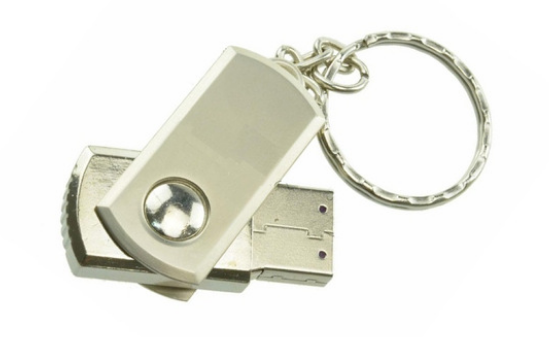
how to setup step by step
1.)
[IMAGE: https://steemitimages.com/DQme1KDMJxm62FFvLctsdTCaid4kVWhKDbWgzVx89smvhFn/arduino.png]
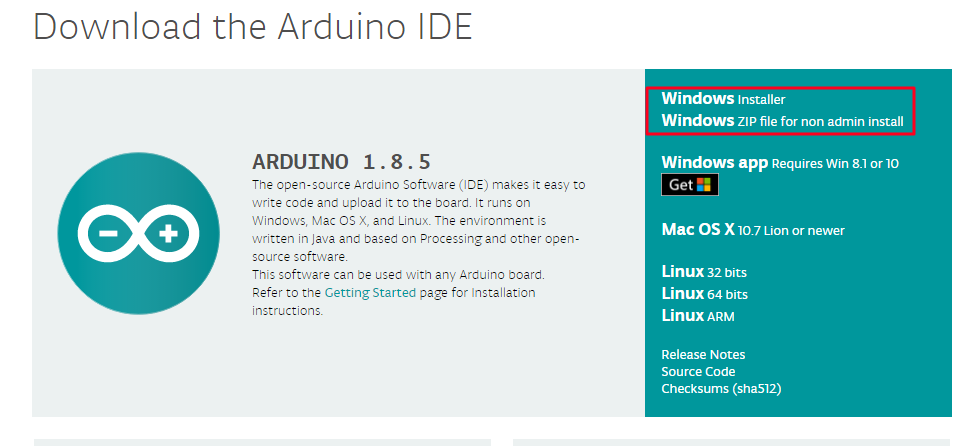
download and install
https://www.arduino.cc/en/Main/Software
2.)
[IMAGE: https://steemitimages.com/DQmPKwdJB2kyxKUBTHAoVcKS3JBhvbS6AdEtXiDXWZpF3UL/ch.png]
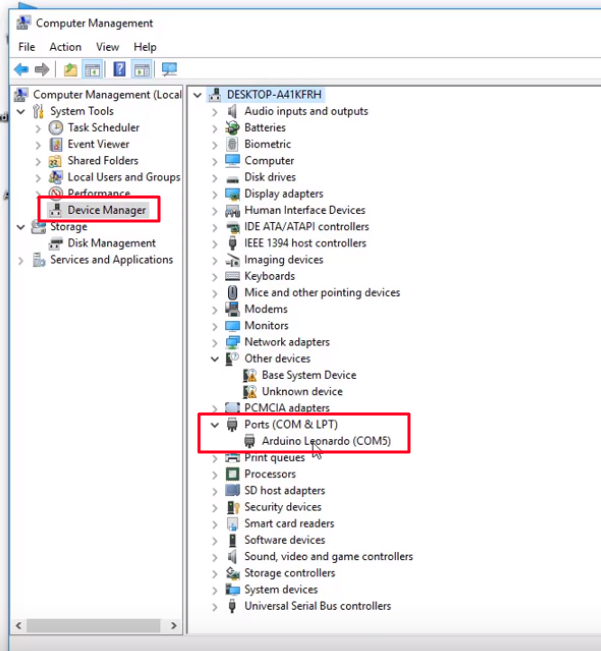
open device manager and check port
my is ( COM5)
3.)
[IMAGE: https://steemitimages.com/DQmNhyQ1fZBpWAiTdSXmYdArGhZ25Kjt3jb3PPL3eS3ReTD/adruino.png]
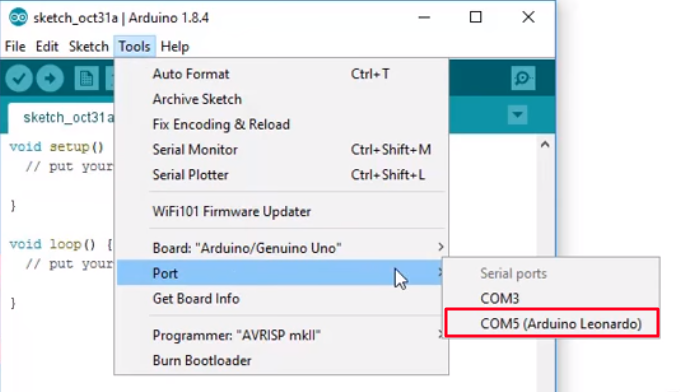
start adruino software and select your COM port
4.)
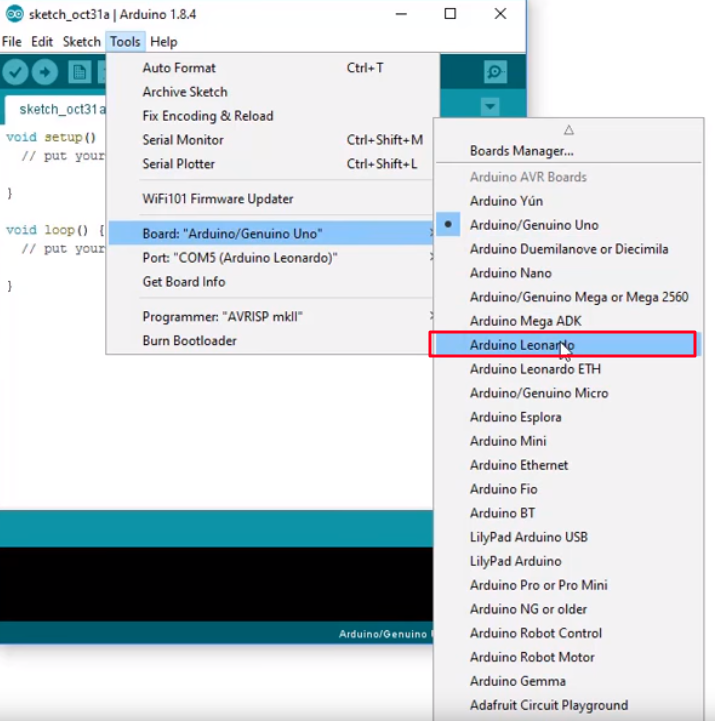
[IMAGE: https://steemitimages.com/DQmYYEcdJ7844LzXXu99cqishvkuY4x6fUUb4irT4vN6imH/sel2.png]
select Board
5.)
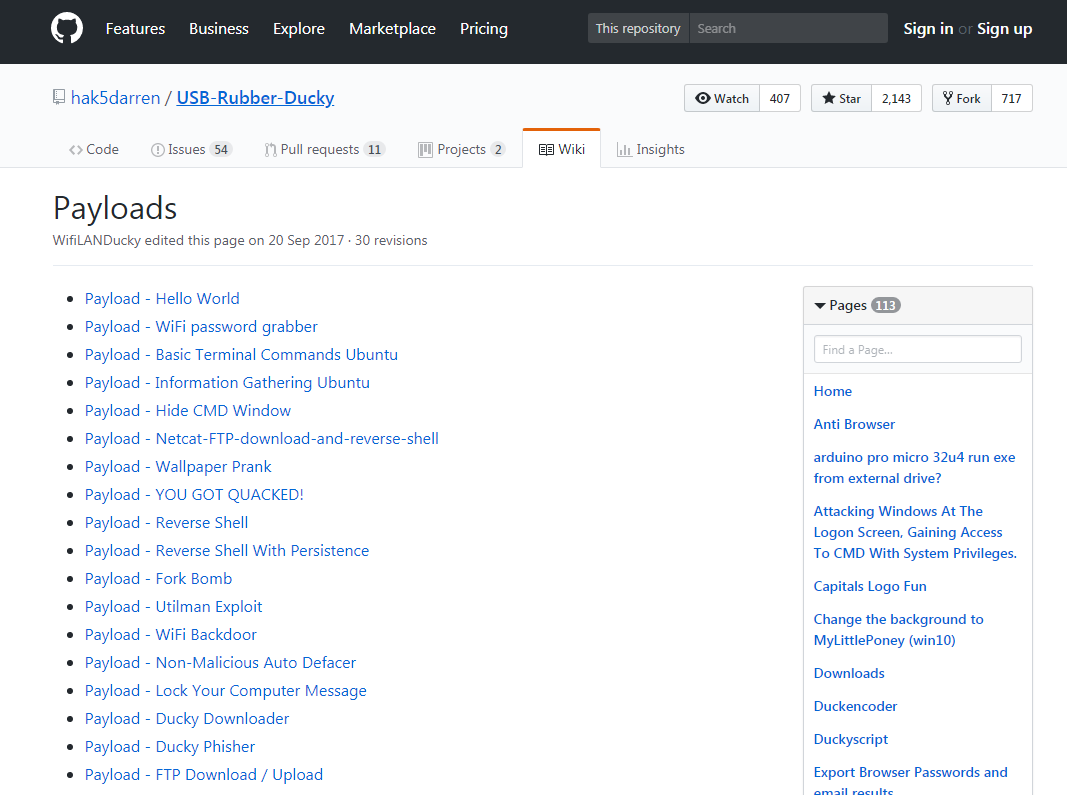
[IMAGE: https://steemitimages.com/DQmZ7SDi4EJP1FCSXSdddTR2FLdmHLMhdfL3CfxzH8JsVH4/ducky.png]
now open your browser and select a duckyscript from https://github.com/hak5darren/USB-Rubber-Ducky/wiki/Payloads or write your own duckyscript.
6.)
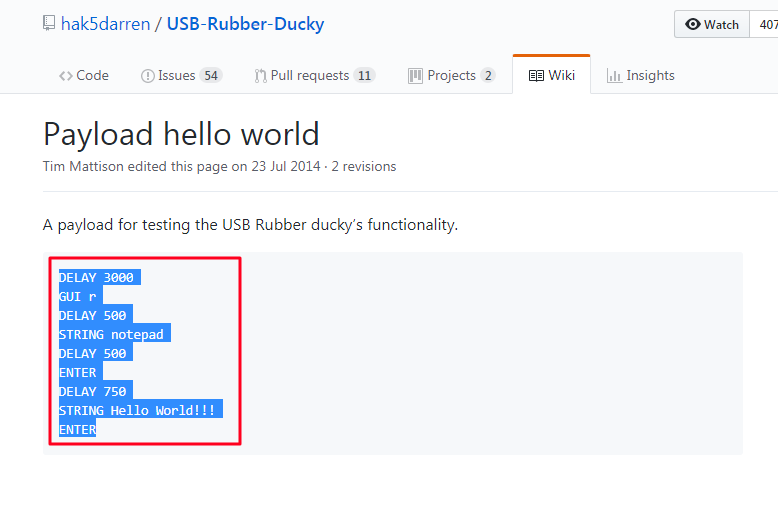
[IMAGE: https://steemitimages.com/DQmaRGsaoCNt5ZMyJMEQ2HEyx8ygm1KWGh1kKyryMpwsATu/cop.png]
i copy this script
7.)
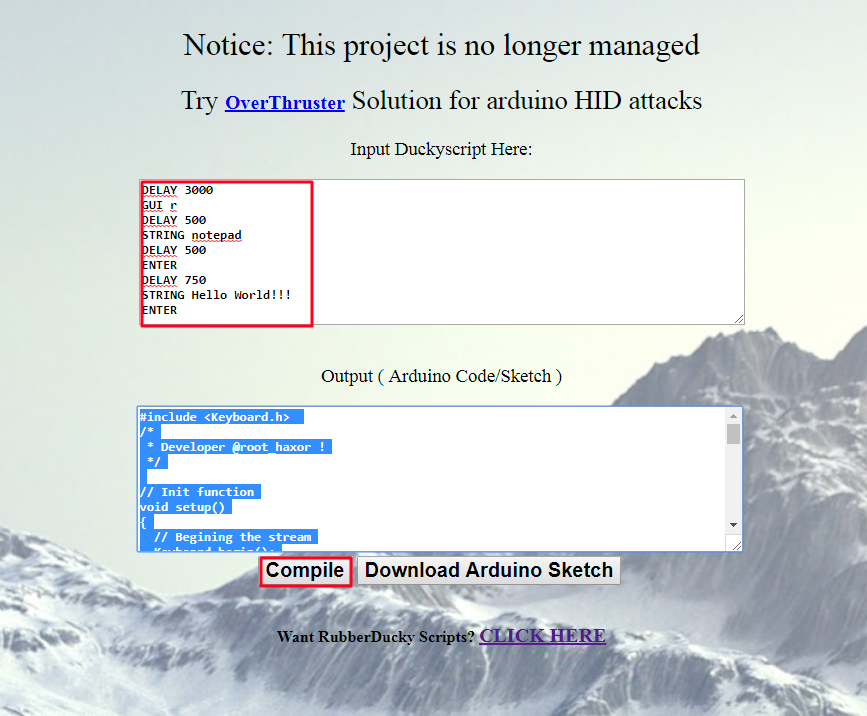
[IMAGE: https://steemitimages.com/DQmY22rNoHrmQ4Fke2qixJxvJcdhZa1ayc5E6aTX2EoJ2v7/com.png]
now go to https://roothaxor.gitlab.io/ducky2arduino_stable/ and paste the duckyscript in the inputbox and press Compile button. After compile copy the arduino-code from outputbox.
8.)
[IMAGE: https://steemitimages.com/DQmTgf7GdTQhS2xxwDCoZQNrrCqW7vrpBqLsnk9Buh8pwik/ardu.png]
change to arduino software and paste the arduino-code in the box
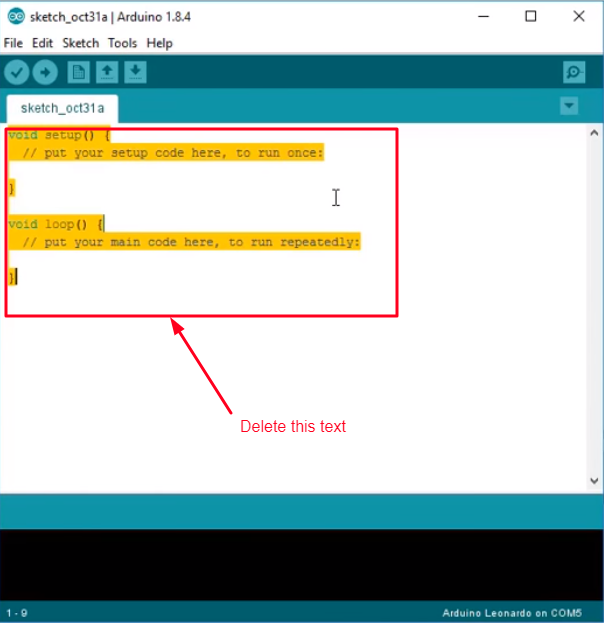
9.)
[IMAGE: https://steemitimages.com/DQmNr7kcnUNyUf5RNeTPgzn5djPsFAzueYrcFjJw1L945qG/arduio.png]
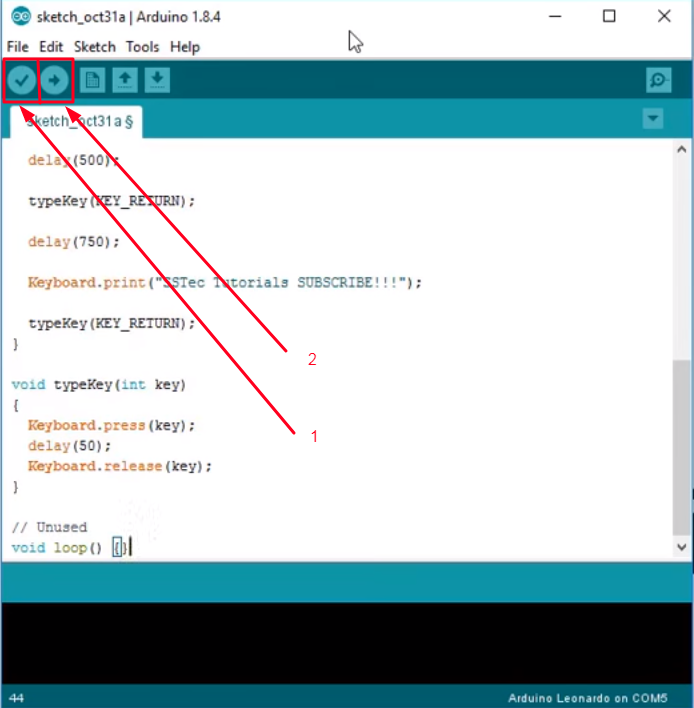
1. press verify button to see if there are any errors
2. press to upload the code on your stick.
keyboard layout is standard English to change language use
for arduino-code this:
Keyboard.press(KEY_LEFT_ALT);
Keyboard.press(KEY_LEFT_SHIFT);
Keyboard.releaseAll();
or for duckyscript this:
ALT SHIFT
9.) STAY EVIL AND HAVE FUN
May the Force be with you!!


