In this tutorial series you will learn how to use the open source R programming language and the steemRdata package to analyse data from the Steem Blockchain.
https://steemitimages.com/0x0/https://cdn.steemitimages.com/400x400/https://www.r-project.org/logo/Rlogo.png
Repository
The R source code can be found via one of the official mirrors at
https://cran.r-project.org
What Will I Learn?
This is the second part of a 9 part tutorial series about the R Statistical Programming Language, targeted at data analysts and programmers that are active on Steem. This 2nd tutorial is quite long but in it we will cover all the basics of using R. You may wish to review Lesson 1 Introduction to R before proceeding.
Subsequent tutorials will focus on worked examples and we will introduce new concepts with each lesson.
In this tutorial you will:
- Become Familiar with the R Studio IDE
- Learn the basics of R data structures and functions
- Learn the basics of R Packages
- Learn how to import and export data to the R environment
- Plot and Summarise Data with R
- Get an overview of the different Graphics Engines in R
- Use the steemRdata package to download all your Steemit Posts.
Requirements
- Lesson 1 Introduction to R
- Basic Knowledge of Statistics
- Basic Programming Experience
- Some Knowledge of Steem and Cryptocurrencies
Difficulty
- Intermediate
https://steemitimages.com/DQmehTDgLpQghT7ZWRnfYZAgK4VkGKZXgQUH476xivXaiZf/circles.png
R Studio
R Studio is an IDE for R which includes many useful features for managing your data, storing and running scripts as well as managing packages. In the Introduction to R post we began using R Studio (The Free Version). Today we will take a closer look at some of the features of the IDE.
You do not need to use R studio to use R but it has many useful features especially when you are learning.
Default Layout
The default layout for R studio is a 3 screen layout. This is what you see when you open R Studio for the first time.
https://i.imgur.com/9XAXERs.png
Scripts
R commands are executed in the console, but in order to reuse and save code you typically open up an R script, write the code there then send it to the console to be executed.
open a new script
Click File > New File> R Script.
This adds another window to the R Studio IDE which is an empty script file. This can be seen on the top left.
https://i.imgur.com/KWfQcgU.png
In the IDE we can also see the following sections
Console (Bottom Right)
This is an interactive area where your commands are executed. If you wish to run a script you must copy and paste the commands to the console, R studio provides a convenient way to pass commands from your scripts (Ctrl + Enter). You can cycle through commands in the console (just like a terminal) and this is useful to tweak formulas.
https://i.imgur.com/0JgM635.png
Files, Plots, Packages, Help, Viewer
This pane shows output from running commands (Plots, Help, Viewer) as well as important configuration options (Packages) and a way to navigate the local files.
https://i.imgur.com/FkzWygP.png
Typical Workflow
A typical workflow coding in R will be as follows:
* type commands in the script file
* Send the commands to the console (Highlight Code in script file then hit Ctrl+Enter)
* View the output in the console and graphics on the bottom right pane
You will also see any variables that are created under Environment in the top right pane
https://steemitimages.com/DQmehTDgLpQghT7ZWRnfYZAgK4VkGKZXgQUH476xivXaiZf/circles.png
Now that we have gotten to know our workspace we can take a closer look at some of the building blocks of R programmes, namely data types & structures and functions. Let's get coding
Data Types & Structures
vectors, matrices, arrays, lists & data frames
R is used for statistical analysis and every analysis will have data inputs and outputs.
At the lowest level R data is stored in two different formats; numeric and character but R allows you to build rich data structures from these two basic types. What makes R powerful as a prototyping language is that it is intuitive for statisticians to use. The basic data structures have intuitive features and work as a non specialist programmer, such as a statistician, would expect.
There are 4 basic data structures in R ; Vectors, Matrices, Arrays and Lists
Vectors – a 1 dimensional array of elements
You can construct a vector with the c (combine) command.
Type the following into the script file , select it and hit ctrl + enter
> x = c(1,2,3,4)
x
You will see the results in the commands being sent to the console and the results.
* The first command creates a vector x with elements 1,2,3,4
* The second command prints the values stored in the vector x
https://i.imgur.com/KbWtQLq.png
You will also notice a vector appearing in environment (top right)
https://i.imgur.com/uxboQVC.png
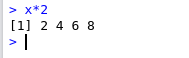
Most R functions operate on vectors in an intuitive way. By giving the basic elements (numbers characters) some higher level structure, R knows how to deal with the basic operations. For example if we multiplied the vector x by 2, R will automatically multiply each element of the vector by 2.
In the console type the following and you will see the result of multiplying each element of the vector x by 2.
> x*2
Matrices – a 2 dimensional array of elements
To construct a Matrix we need to use the matrix function and specify a few parameters.
In the script file underneath the vector code, type the following, select it and hit ctrl + enter
> A = matrix(1:12,nrow=3, ncol=4)
A
You will see the results in the commands being sent to the console and the results.
* The first command creates a Matrix A with elements 1,...,12 with 3 rows and 4 columns
* The second command prints the values stored in the Matrix A
* You will also notice a Matrix A appearing in environment (top right)
https://i.imgur.com/hMAynhl.png
Arrays – higher dimensional arrays of elements
To construct an Array we need to use the array function and specify a few parameters.
In the script file underneath the Matrix code, type the following, select it and hit ctrl + enter
> B = array(1:24, dim=c(4,3,2))
B
You will see the results in the commands being sent to the console and the results.
* The first command creates an Array B with elements 1,...,24 with 4 rows and 3 columns and 2 layers
* The second command prints the values stored in the Array B
* You will also notice an Array B appearing in environment (top right)
You will have noticed that in all the above examples we have only had numbers. For Vectors, Matrices and Arrays. If we had used Characters then they would all the elements would have been the same type.
In the script file underneath the Array code, type the following, select it and hit ctrl + enter
> y = c(“Monday”, “Tuesday”, 1, 2)
in this case typing x*2 in the console would give an error.
So the conclusion is elements of a Vector, Matrix or Array can be a number or a character but not both.
Can we have mixtures of types of elements?
Lists – These are data structures potentially composed of heterogeneous elements.
Lets combine the first three variable we have created into a list
In the script file underneath the other code, type the following, select it and hit ctrl + enter
> alist =list(vec=x, mat=A, arr=B)
alist
You will see the results in the commands being sent to the console and the results.
* The first command creates a data structure that includes x, A & B
* The second command prints the values stored in the list. This data structure is richer and in order to access the different elements we can use commands as follows
> alist$vec #(Equivalent to x)
> alist$mat #(Equivalent to A)
> alist$arr #(Equivalent to B)
Data Frames and Data Tables
A special type of list is called a dataframe. This is a two dimensional table (much like a spreadsheet) and was common for storing data but it is not very efficient. We mention it here because it is common and easy to use. For the rest of the course we will use a similar structure which is not native to base R but is introduced via an add on package. This structure is called a Data Table.
Before moving on to the next section lets save our untitled script so we can close out of it and come back later
Click File>Save As
Choose a location and save using a suitable name e.g. "R Tutorial.R"
Your IDE should look like this
https://i.imgur.com/kEZm7i0.png
https://steemitimages.com/DQmehTDgLpQghT7ZWRnfYZAgK4VkGKZXgQUH476xivXaiZf/circles.png
Functions & Help
In Built
R includes basic mathematical operations such as addition, subtraction, multiply … but it extends basic arithmetic with hundreds of inbuilt mathematical operations for statistical analysis.
For example to calculate the natural log of 100, you can use the log function.
In the console type
> log(100)
Help
To get help about a functions you can type help(funName)
In the console type
> help(log)
You will see the help files in the bottom right screen in R Studio.
https://i.imgur.com/DVGYmOO.png
User Defined Functions
R lets you create your own functions using a straightforward syntax.
In the script file under the other code type the following, select it and and hit ctrl + enter
> square <- function(x) {
return(x*x)
}
You can now type in the console to see 5 squared
> square(5)
https://steemitimages.com/DQmehTDgLpQghT7ZWRnfYZAgK4VkGKZXgQUH476xivXaiZf/circles.png
Packages
Add on Packages CRAN, github
You can extend the functionality of base R by loading R packages. The main R repostirory for pacakges is called CRAN. There are over 14,000 and counting in this repositry alone. Packages generally add additional functions which you can then use in your workflow.
- For example steemRdata adds functions for querying data from the Steem Blockchain.
To install packages from CRAN you can click on the packages tab in R studio, and search for a package to install. Packages shown here are in the main R repository only. These are not official packages but rather user submitted packages to CRAN.
https://i.imgur.com/aAsh4vn.png
- Packages already included in the list shown in R Studio are already installed locally but in order to make them active you need to tick the box next to the package name which loads it.
Install Devtools
There are many additional packages which you can install that are not on CRAN and in particular there are many on github which you can install. To make this process easier a package called devtools makes downloading and compiling packages from github directly. We will install this package now.
> Click on the Packages Tab
> Click Install
> type devtools
> click install
This will take a few minutes to complete as it downloads the package and any dependencies. When it is complete you can activate the devtools package by scrolling down and ticking the box. or typing library(devtools) in the console.
If you wish to see what is in a package you can browse the help files on the bottom right screen by clicking on the hyperlinks. Packages in R are generally well documented.
steemRdata
We will make use of the steemRdata package in this course so lets install this package from github
Type into the console
> library(devtools)
> install_github("kharoof/steemRdata")
When this has completed you will see it appear in the right hand screen next to the other packages.
https://steemitimages.com/DQmehTDgLpQghT7ZWRnfYZAgK4VkGKZXgQUH476xivXaiZf/circles.png
Our Environment is configured, we have learned about data structures and packages so we can now start loading data and analysing it
Data Import and Export
The first stage of any analysis will involve reading in the data to R, and specifying the data types and storage format (data frames, vectors, matrices, lists)
To keep this simple to begin we will only read in data that is stored in nicely formatted csv files but R is very flexible and in future lessons we will see how easy it is to read in data from remote locations and even scrape webpages for data.
In the console Type
> library(data.table)
> steem_data <- fread("https://raw.githubusercontent.com/kharoof/R-Tutorials-for-Steemit/master/steem_data.csv")
> steem_data
- We can see steem_data is a variable/data structure that includes a list of steem posts with the post title, date, number of votes and post payouts
In order to save output you would use a similar command e.g.
In the console Type
> frwite(data=steem_data, file="steem_data.csv")
https://steemitimages.com/DQmehTDgLpQghT7ZWRnfYZAgK4VkGKZXgQUH476xivXaiZf/circles.png
Data Exploration
Now that we have loaded our data to the R environment we can begin our data analysis
Basic Stats
We will first look at basic summary stats for our dataset which give us a feel for the data (quantile, max, min, mean, mode)
In the console Type
> summary(steem_data)
This shows you a summary of each column of the table
https://i.imgur.com/M4GnbPz.png
You can also explore the data by clicking on the data item in the environment pane on the top right
https://i.imgur.com/XaQrr1U.png
Deeper Analysis
Our data is stored in a variable called steem_data. In order to access just the votes of our data table
In the console Type
> steem_data$votes
Lets explore the votes using some of R’s powerful statistical analysis capabilities
In the console Type
> plot(steem_data$votes)
Then type
> hist(steem_data$votes)
- You will see two graphs appear showing properties of the data.
https://steemitimages.com/DQmehTDgLpQghT7ZWRnfYZAgK4VkGKZXgQUH476xivXaiZf/circles.png
Graphics
R graphics are based on 4 core graphics engines. Each has its own strengths and weaknesses and can be used in the analysis stage and the final output and presentation stage.
* Base – useful for quick plotting (pen and paper type analysis)
* Grid – not usually used directly but implemented by other packages.
* Lattice – multidimensional visualisations including faceting.
* ggplot2 – advanced polished visualisations implementing grammar of graphics
We have seen some basic graphs which are useful and quick to get a feel for the data. Lets begin looking at more advanced graphics capabilities which can be accessed by enabling the ggplot2 packages
ggplot2
Looking at the following code initially it may seem more complicated than the base plot function, but we will see in later tutorials how ggplot2 and its implementation of the grammar of graphics can be used to create powerful insightful graphics.
Don't forget most of this code is stored in scripts. You do not need to know how to write it you just need to know what parameters you can tweak to get it working.
Load the ggplot2 package. In the console type
> library(ggplot2)
Plot the Vote Data, In the console type
> ggplot(data, aes(x=date, y=votes))+geom_point()
Plot the Payout Data, In the console type
> ggplot(steem_data, aes(x=date, y=total_payout))+geom_point()
* You will notice here all we had to change was the name of the variable.
The first part "ggplot" specifies the data and the aesthetics of the data we wish to graph, the second part "geom" specifies how we want to plot the data. In the first example the aesthetics are date and votes (the x and y axis) and the geom is to plot these aesthetics as points.
https://steemitimages.com/DQmehTDgLpQghT7ZWRnfYZAgK4VkGKZXgQUH476xivXaiZf/circles.png
Analyse your own Blog
You have now mastered the basics of R and you can begin to start analysing your own Steemit blog feed with it. We will use the steemRdata package to get your post history.
In the console type the following
> library(steemRdata)
> my_data <- getBlog("steemusername") # Change steemusername to your steemit user name
> summary(my_data)
- The output will include a lot of fields with each record in the data.table representing one of your posts.
You may wish to try to run some of the commands we learned today such as hist(my_data$votes)
Coming up
This post covered the basics of R but you can already see how easy it is to use. After just 2 lessons we are downloading data from the steem blockchain and visualising it.
This course will cover the basics of R over a series of 9 lessons. We begin with some essential techniques (in the first 2 lessons) and I will then take you on a tour of some of the more advanced features of R with worked examples that have a Cryptocurrency and Steem flavour. The next tutorial will look at scraping web data with R.
Curriculum
For a complete list of the lessons in this course you can find them on github. Feel free to reuse these tutorials but if you like what you see please don't forget to star me on github and upvote this post.
- https://github.com/kharoof/R-Tutorials-for-Steemit/
Related Posts
Thank you for reading. I write on Steemit about Blockchain, Cryptocurrency and Travel.
R logo source: https://www.r-project.org/logo/