For sending a mail, I am bound to the key combination CMD+Enter (⌘↵ ). Of course the Mac OSX default mail application, Mail.app uses something else.
I won’t even spend time on finding out the combination for sending mail using 3 keys so I get tendonitis after 5 emails sent.
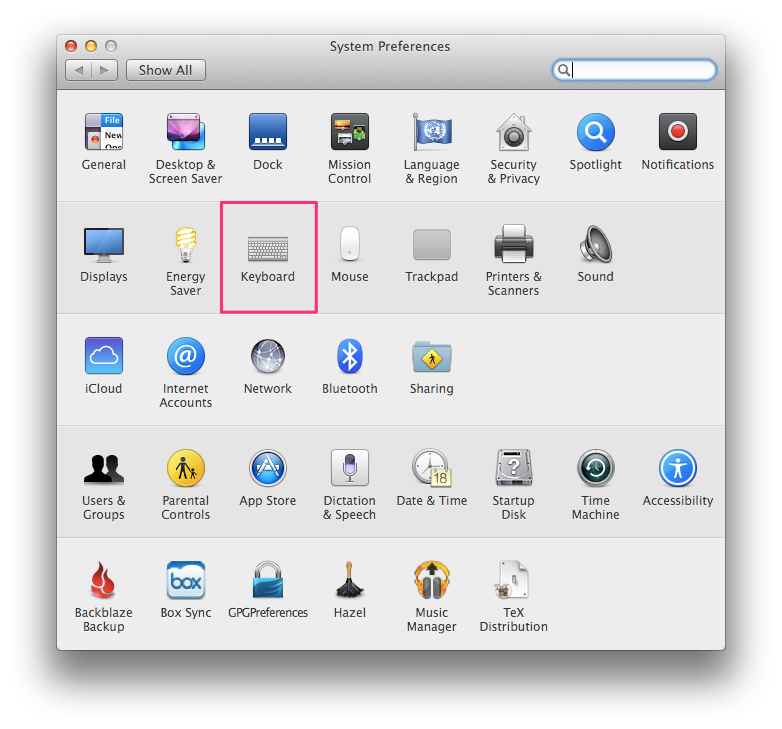
There is an easy way to create shortcuts for basically everything in Mac OSX. Let’s set up ⌘↵ for sending emails in Mail.app. To do this, let’s open up System Preferences and select the Keyboard section.
[IMAGE: https://steemitimages.com/DQmRiWTiH94U2SoScwva3M1DDYzoc8Vt1e1wwRPtEJ5rYCS/systemprefs.png]
System Preferences / Keyboard
Go for the Shortcuts tab in the top menu.
[IMAGE: https://steemitimages.com/DQmXzJDr6dWMwe8g4jUd5UJXSm3mCD3vquhLyyc1kE3A8WT/keyboard.png]
App Shortcuts
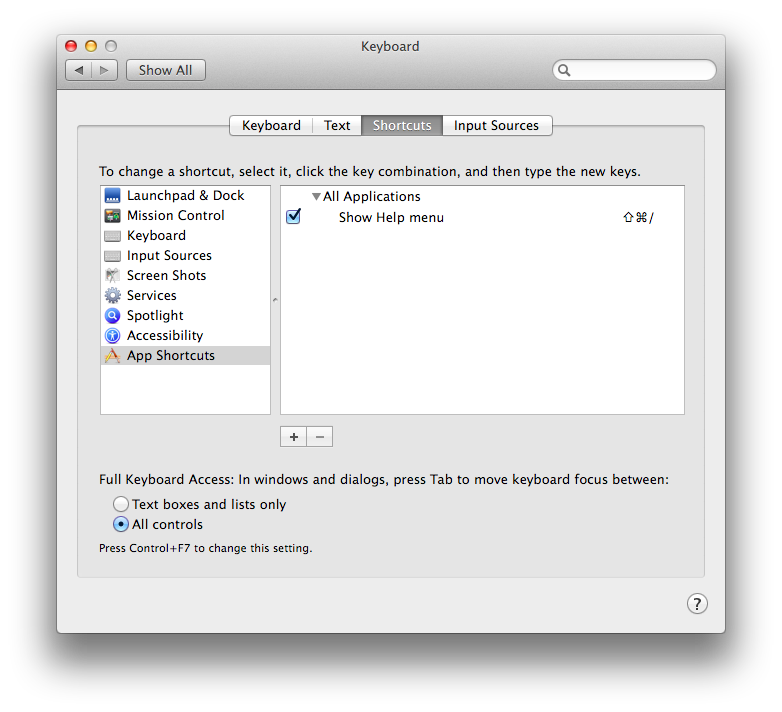
Select App Shortcuts from the list on the left of the screen and then click the + button underneath the list of current shortcuts.
[IMAGE: https://steemitimages.com/DQmTEnFLTtdkvRMgPhLENrD2wGd4eq12HHztYpMHKamd7L1/keyboard2.png]
Select Mail.app in the Application dropdown menu
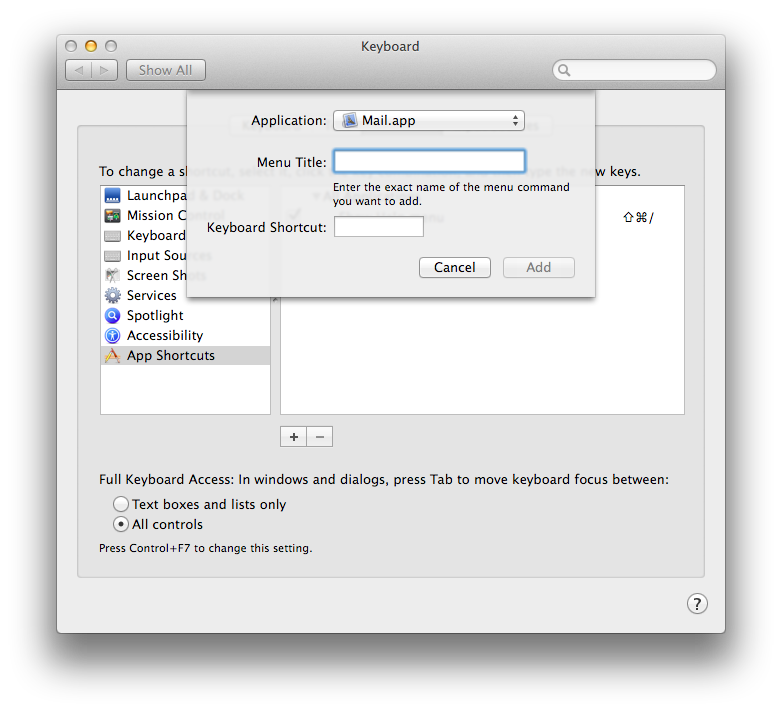
After selecting Mail.app in the Application dropdown menu, the Menu Title: Send
and the Keyboard Shortcut is: ⌘↵.
[IMAGE: https://steemitimages.com/DQmaeCztpAMbm5YRxBYP5uBRfXWEojbAbMMnuwVo1xqdwE5/keyboard3.png]
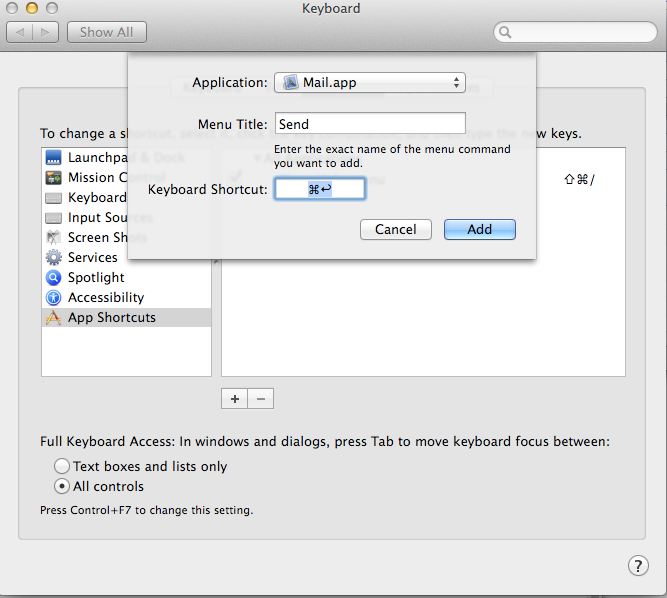
Click Add and enjoy sending mails like you did in Thunderbird, Gmail or any other mail application.
Originally I wrote it on Medium
