+-+-+ +-+ +-+-+-+-+
|G|O| |4| |H|I|V|E|
+-+-+ +-+ +-+-+-+-+

 --- A GOPHER-LIKE INTERFACE FOR HIVE BLOCKCHAIN ---

Complete Guide to Discord - All You Need to Know

BY: @positivity420 | CREATED: March 9, 2018, 6:01 p.m. | VOTES: 240 | PAYOUT: $50.87 | [ VOTE ]

How to adjust and use Discord for your preferences? In the first part of the post will be timestamps.

Press CTRL + F if you are using Google Chrome, you will have this image* in the top right corner of your screen, and write a key word you want to find about (etc. write push to talk in that little toolbar)

[IMAGE: https://steemitimages.com/DQmb2V41L1LaCfUK5otevsHsUyyRiTVp1RD136wzKz4mwxQ/Screenshot_8.png]
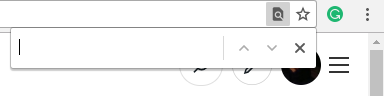
*image you will see when you press (Ctrl + F) (dont press + )

In the second part of the post I will do a brief explanation of my video.

Timestamps

0:08 - Downloading discord
0:24 - Discord servers/communities

Names of servers, status, invite link and all the icons in a Discord server

0:46 - Name of servers/communities
0:50 - Status of every server
0:55 - Server members

0:56 - 1:50 Icons in the top right corner in a server (Member list, pinned message, mute button, mentions, search, help)
1:53 - Channels in a server
2:04 - Invite links
2:23 - Notification settings for a specific server
3:15 - Privacy settings for specific server
3:35 - Change nickname, muted channels
3:50 - Leave a server
3:57 - Your status (Online, idle, invisible)

App Settings

Voice and video
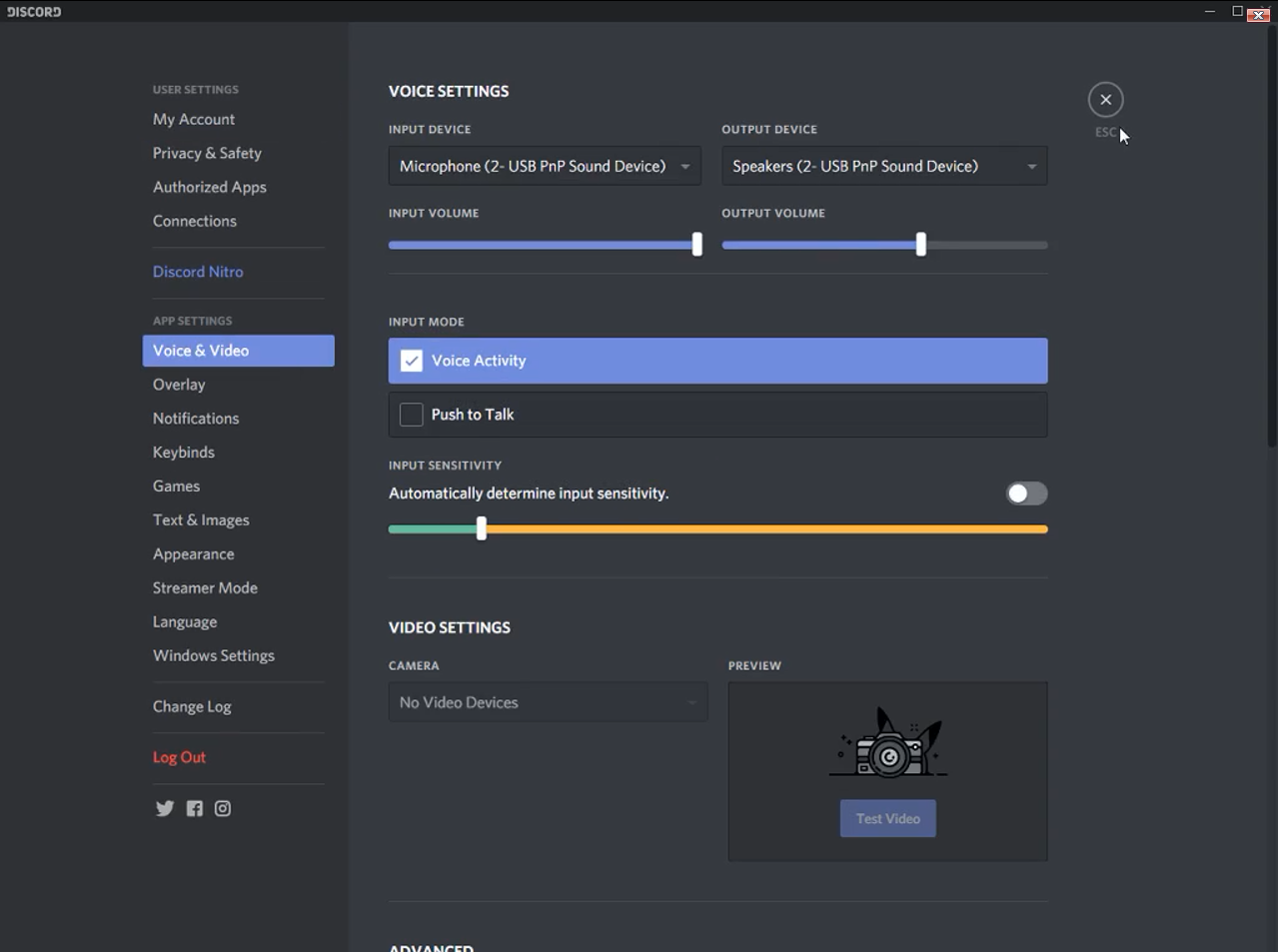
4:08 - Voice chat - PUSH TO TALK
4:12 - Voice activity
5:17 - Voice settings (input devices, output devices)
6:22 - Voice processing
6:34 - Attenuation

7:15 - Overlay
7:40 - Notifications
8:28 - Keybinds
8:50 - Games
9:26 - Text and images
9:45 - Appearance
10:22 - Streamer Mode
11:08 - Language
11:22 - Windows settings
12:20 - Change Log

12:26 - Discord Nitro
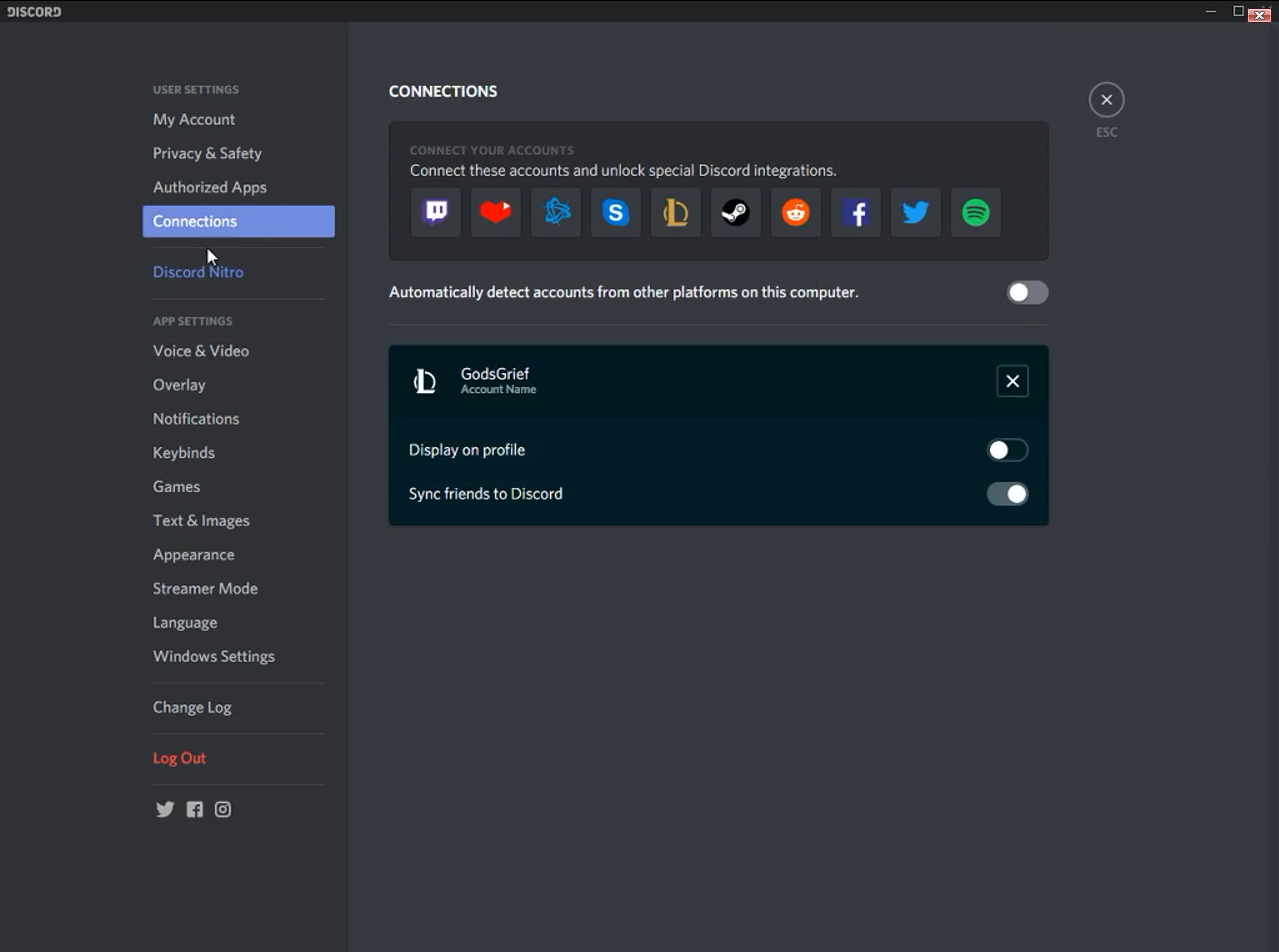
12:47 - Connections
12:53 - Authorized apps
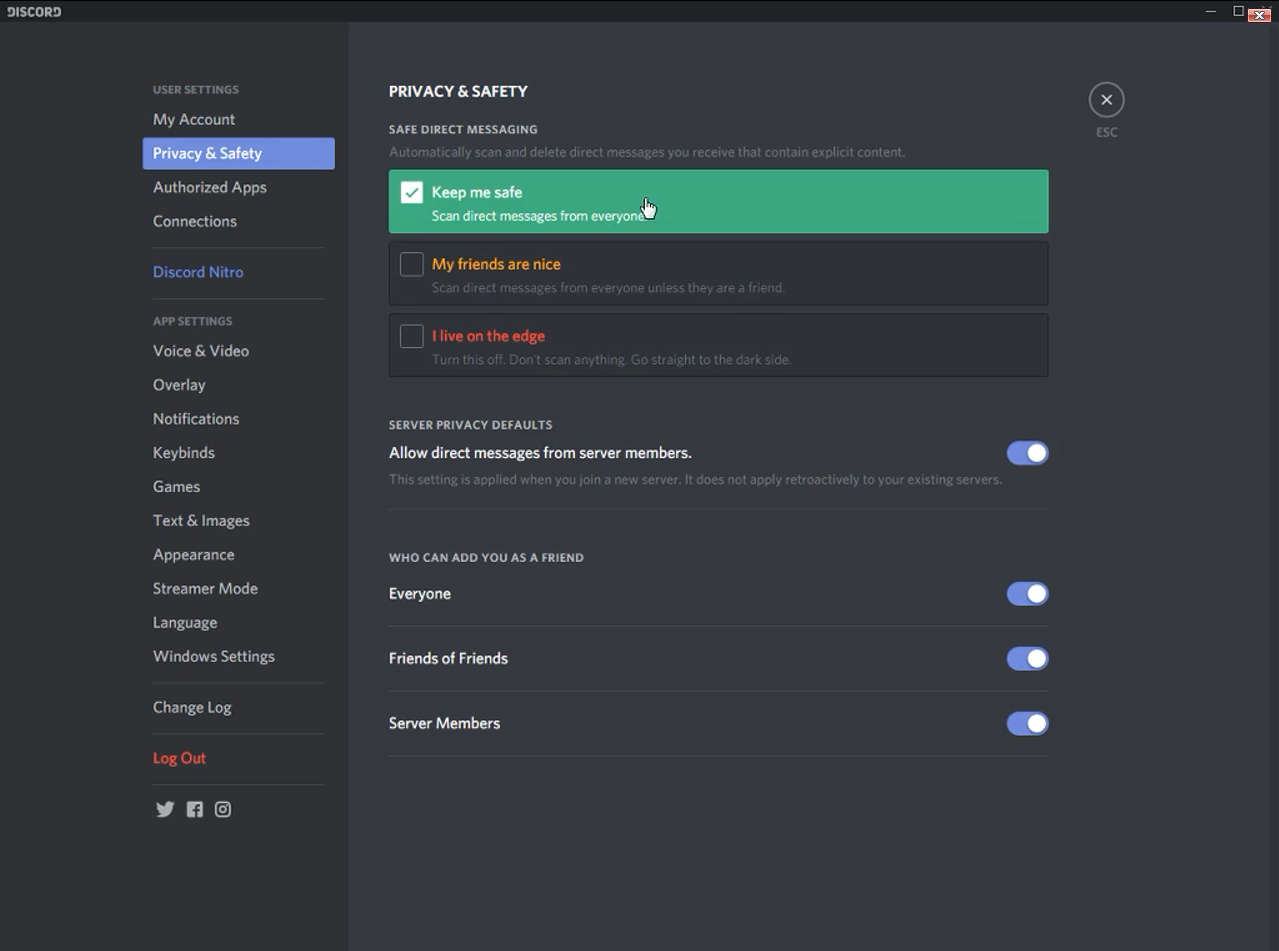
13:01 - Privacy and safety
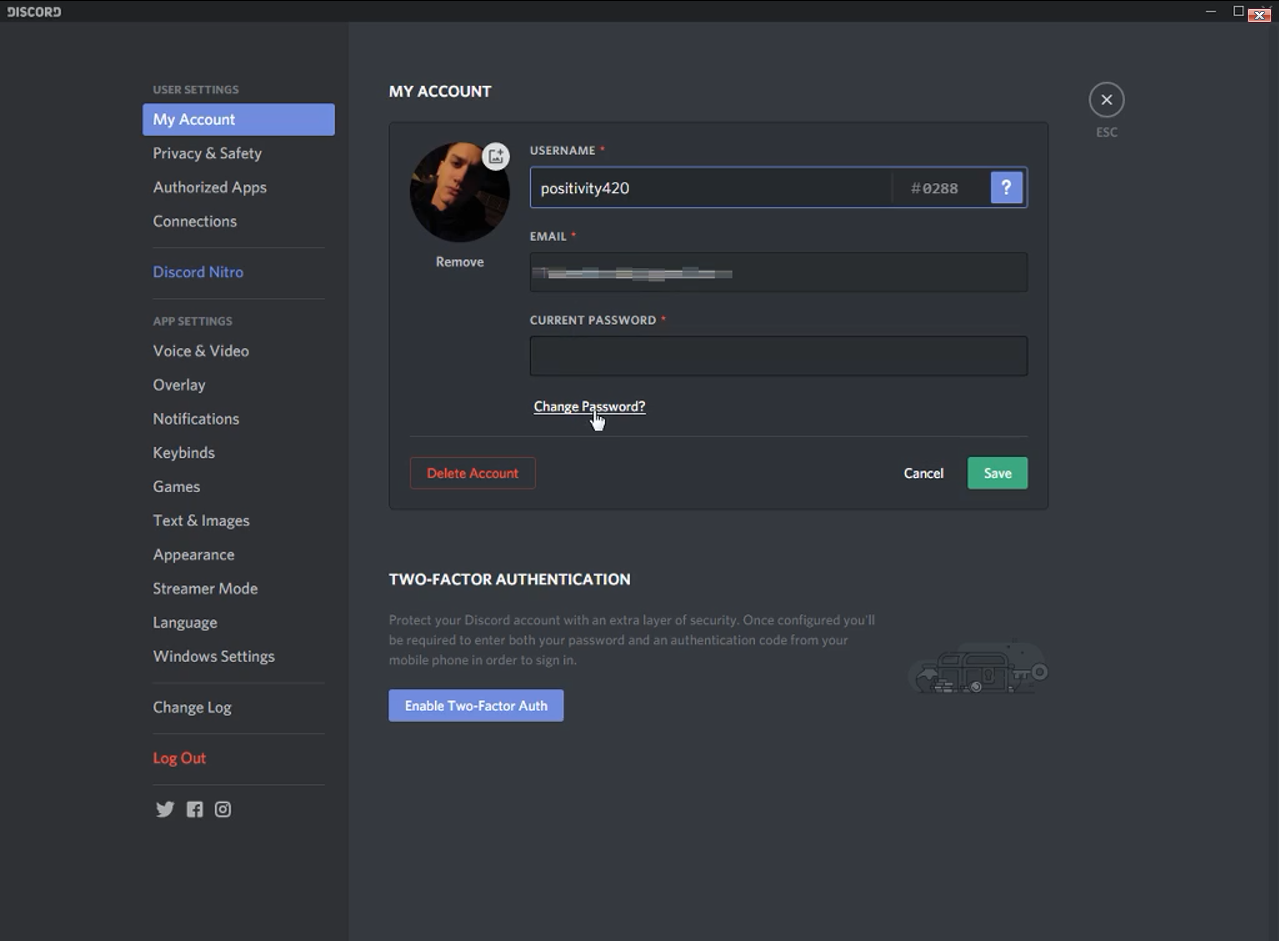
14:14 - My account
15:20 - Example of using push to talk

Direct messages, friends

15:50 - People who you contacted
16:11 - Find people, Start a conversation
16:53 - Icons in a direct message with someone
17:05 - Group direct message (Making group chat)

Complete Guide for Discord - All you need to know

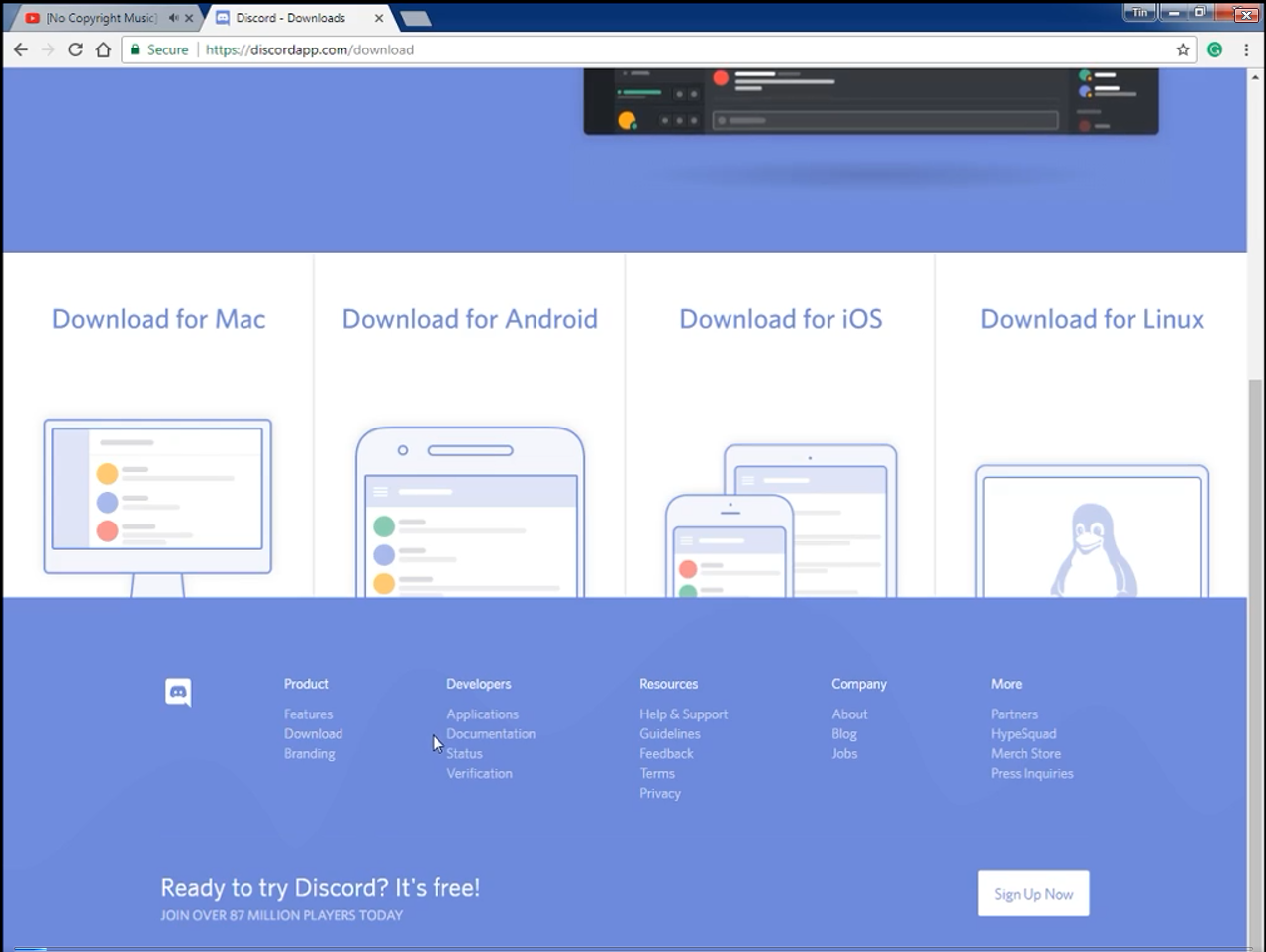
Downloading Discord

[IMAGE: https://steemitimages.com/DQmWd3XCDAjgSPmkq846EdBQMjAu7Gxbqc7Ut2xn8Bs6h5k/Screenshot_9.png]
Discord Servers

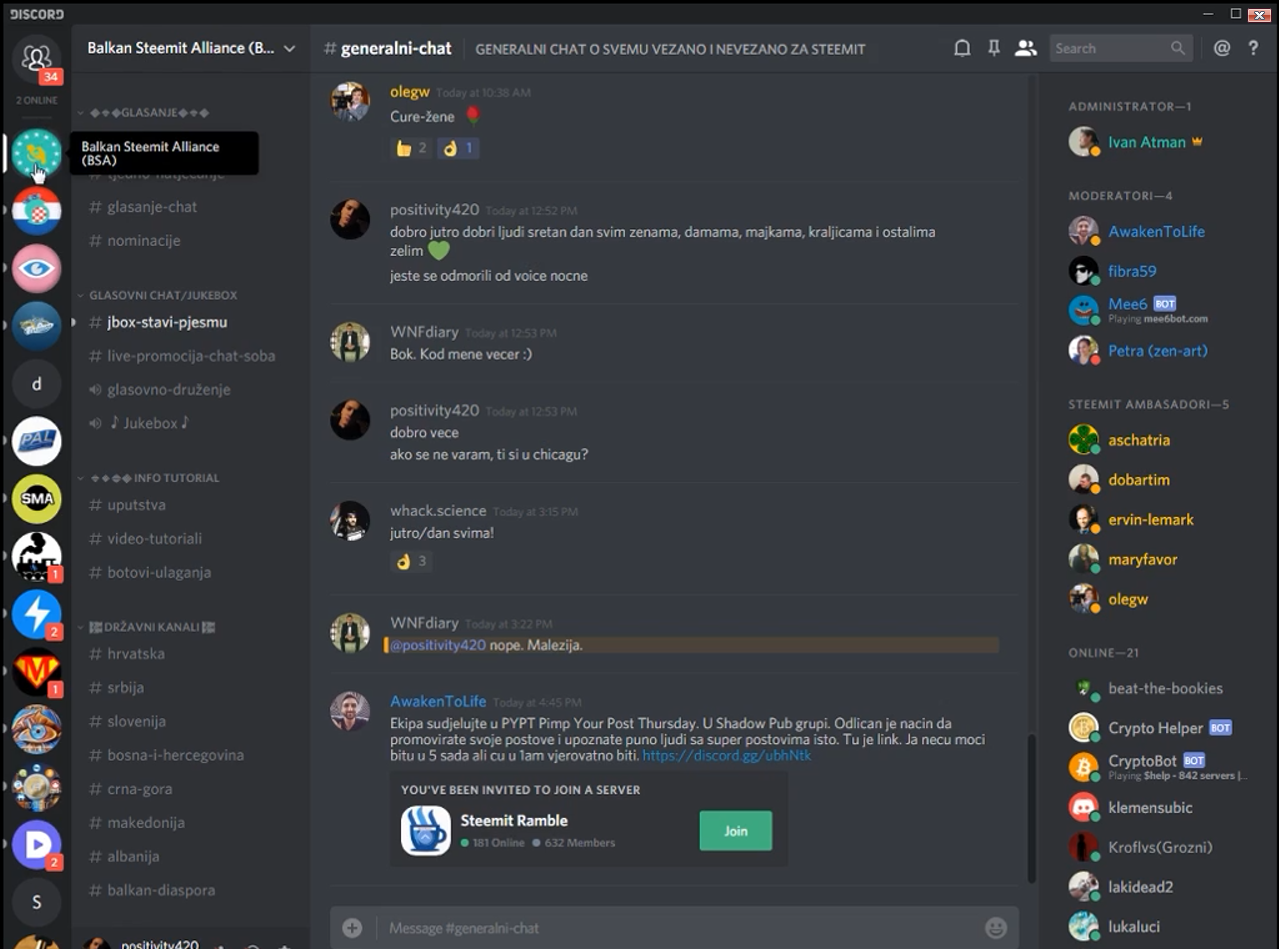
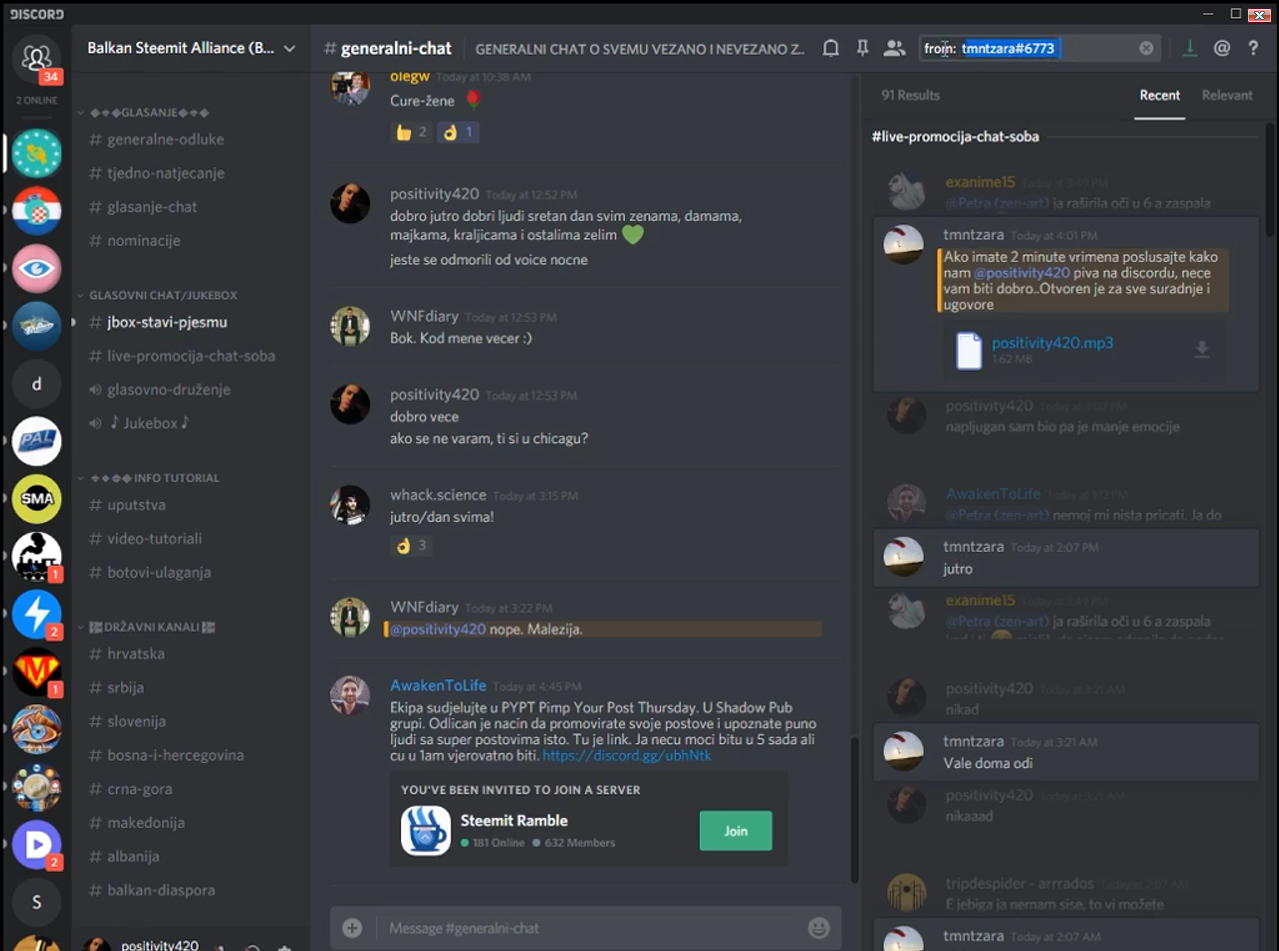
In this part of the video I covered all of the options you have when you join a Discord server.

[IMAGE: https://steemitimages.com/DQmRgq4VJPoSpFsZVjHWnxewUXXJWWWcsbUtQPh8dbNfngR/Screenshot_10.png]
[IMAGE: https://steemitimages.com/DQmbQyyApzn5QEyStaESB5ebKns4yKdxJP7fu3C49mQwTZD/Screenshot_11.png]
App settings

[IMAGE: https://steemitimages.com/DQmbfgX2xbVvTeeiG3QPb6PFkyQSoQk77fg3Ejq1PHDFk5m/Screenshot_12.png]
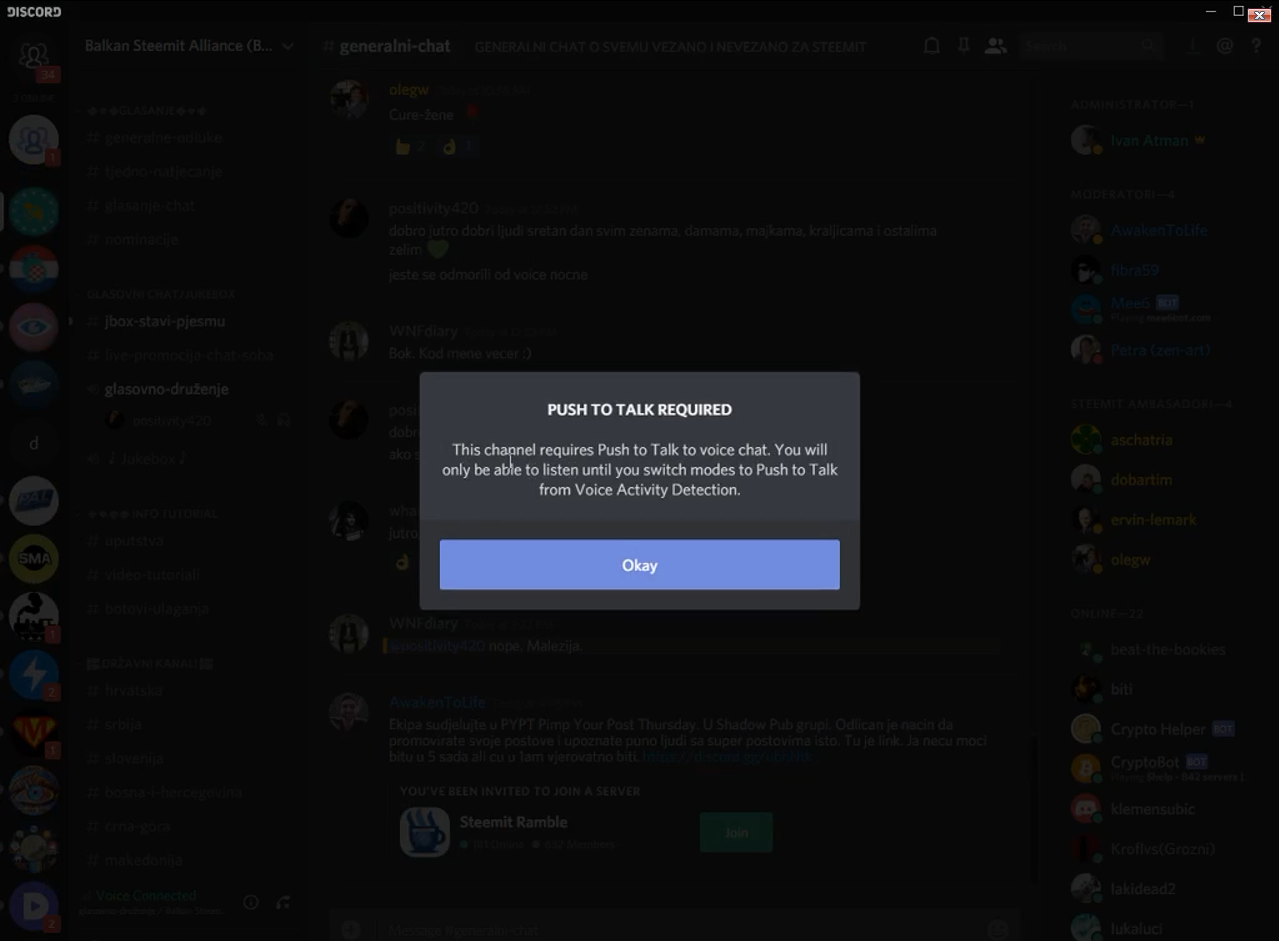
Push to talk voice chat demand from server

[IMAGE: https://steemitimages.com/DQmVTm5H4wsNj87RxTiimttShzgC4SXiMr6DLTscZrsb5xg/Screenshot_13.png]
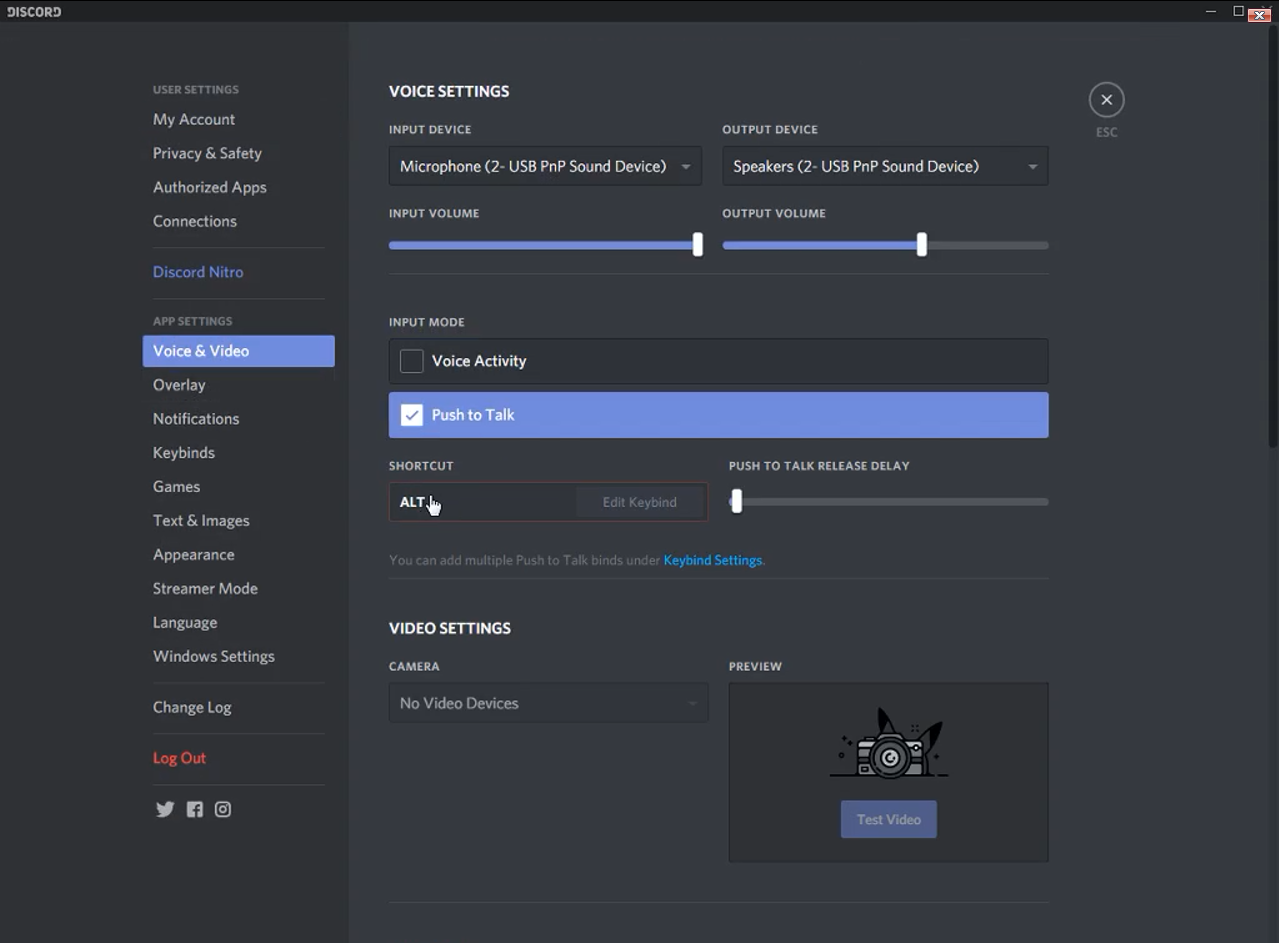
Push to talk

I suggest using "alt" as your keybind for push to talk option, some people use shift, and then they get sticky keys. But you can use any button on your keyboard/mouse you want.

[IMAGE: https://steemitimages.com/DQmXbGhosSdTCJmeg1DU4Uj5KTggacudagAFov3inwk9dv9/Screenshot_14.png]
User settings

Setting up avatar, your nickname and staying safe.

[IMAGE: https://steemitimages.com/DQmWXpwNoxaAs7ykUwjVgqpi5NiEFygnzK8gHUTBWwmLLiV/Screenshot_15.png]
[IMAGE: https://steemitimages.com/DQmZHonSWqMdjXFsfb9tUHc97UgUvxU4cGfYj71RA16dpGS/Screenshot_16.png]
[IMAGE: https://steemitimages.com/DQmW2uzF645HHQA8ykJw1Q5um2vxGGU32svegEVGjPLSZUB/Screenshot_17.png]
Direct messages

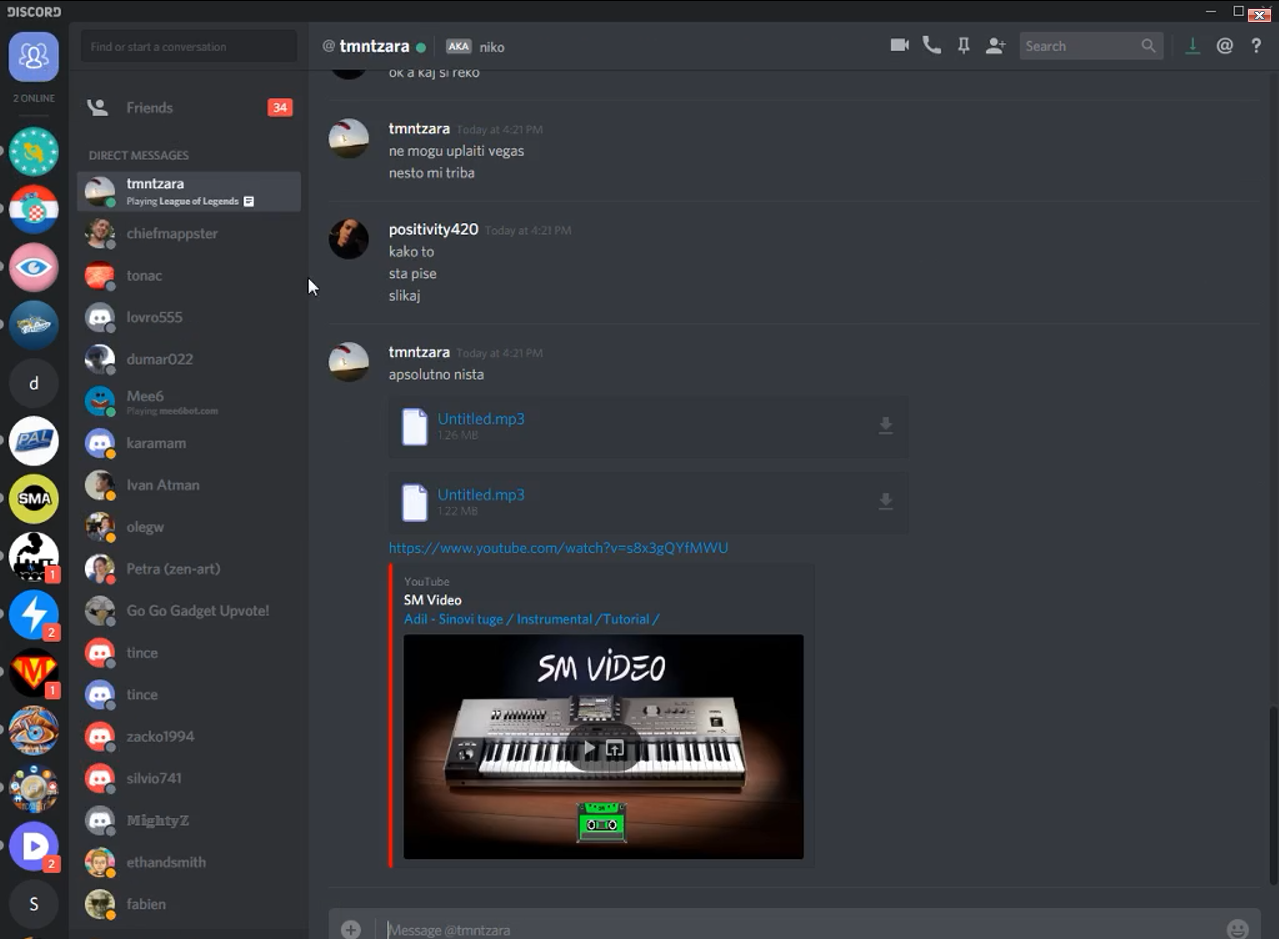
Here I covered all the functions you have in direct messages.

[IMAGE: https://steemitimages.com/DQmTeV1b4Y6cALGYJFNk4GeByYT6fqKBtWE7Na58uxGrqb4/Screenshot_18.png]
▶️ DTube ▶️ IPFS

TAGS: [ #tutorial ] [ #help ] [ #guide ] [ #discord ] [ #dtube ]

Replies

@tonac | March 9, 2018, 6:18 p.m. | Votes: 1 | [ VOTE ]

Thank you @positivity420. As always you're giving a hand to new people and instructions how to start. I think that's a massive help for those who're new because a lot of people on their beginnings didn't have any help and had to learn all by themselves. Discord is really parallel world among Steemit and I've found there a lot of good people who've helped me a lot. I appreciate your work here and effort you invest. Wish you very best :)

@positivity420 | March 9, 2018, 11:32 p.m. | Votes: 1 | [ VOTE ]

Thank you for the love, I am always happy to help, I love seeing genuine good people succeed and strive to improve daily, if you are the best version of yourself you can influence a lot more on people and make their lives better, 1 person at a time <3

@whack.science | March 9, 2018, 6:28 p.m. | Votes: 0 | [ VOTE ]

Thanks bro, again Positive thinking and sharing! Love it!

We need this in one place and thanks! Trš trš! :D

@positivity420 | March 9, 2018, 11:37 p.m. | Votes: 0 | [ VOTE ]

Always sharing the good vibes! Thank you :)

Samo jako rodoooo

@tmntzara | March 9, 2018, 7:02 p.m. | Votes: 0 | [ VOTE ]

Where were you when I needed help with discord? Haha I hope no one will have again problems with discord as I did thanks to your tutorial!

@positivity420 | March 9, 2018, 11:39 p.m. | Votes: 0 | [ VOTE ]

I was stupid enough to not make the tutorial haha :) Thank you for the kind words my friend. <3

@zen-art | March 9, 2018, 7:45 p.m. | Votes: 0 | [ VOTE ]

You did an excellent job with this, now I have a place to direct people when they have troubles with discord. Thank you.

@positivity420 | March 9, 2018, 11:33 p.m. | Votes: 0 | [ VOTE ]

Thanks, love helping people. Always :)

@bil.prag | March 9, 2018, 8:20 p.m. | Votes: 0 | [ VOTE ]

nice one. i needed help with this.

@positivity420 | March 9, 2018, 11:35 p.m. | Votes: 0 | [ VOTE ]

Thanks, happy to help. :)

@megy.fine.arts | March 9, 2018, 9:21 p.m. | Votes: 0 | [ VOTE ]

Great job my friend! Your effort is appreciated!

@positivity420 | March 9, 2018, 11:39 p.m. | Votes: 0 | [ VOTE ]

I am glad it is. Thank you!

@miroslavrc | March 10, 2018, 3:12 p.m. | Votes: 0 | [ VOTE ]

Good and fast tutorial, everything was said. :)

@positivity420 | March 10, 2018, 6:49 p.m. | Votes: 1 | [ VOTE ]

I don't think it was fast... 17 minutes xD Thanks!

@magnifik | March 12, 2018, 9:12 a.m. | Votes: 0 | [ VOTE ]

Svaka cast na postu @positivity420 !

@positivity420 | March 12, 2018, 12:46 p.m. | Votes: 0 | [ VOTE ]

Hvala

@phedizzle | March 15, 2018, 9:13 p.m. | Votes: 0 | [ VOTE ]

Thank you for the information because I have not been able to figure out how to connect to voice on my computer. I have the push to talk setup, but didn't know what to push. I am on a Mac which is too outdated to download the app, so I have to use the website version of Discord. That actually is also a problem for other places, such as Dtube, so I am not able to watch your video. I will try using the command key on my Mac keyboard to see if that works

@positivity420 | March 15, 2018, 9:49 p.m. | Votes: 0 | [ VOTE ]

No problem :) It's what it's for.

How do you mean "too outdated to download the app". Are you sure you can't download Mac version?

@phedizzle | March 15, 2018, 10:04 p.m. | Votes: 0 | [ VOTE ]

Yes, too outdated. I am on OSX 10.6.8 and many apps/websites will not load correctly. They tell me so. Not all, but some. I think I got the push to talk set up and will test it out soon.

@positivity420 | March 16, 2018, 1:38 a.m. | Votes: 0 | [ VOTE ]

Ahh, just did some research since I've never used a Mac, maybe this could help you (if you have 4 gb ram) https://discussions.apple.com/thread/7826116

[ BACK TO TRENDING ] [ BACK TO MENU ]
CMD>